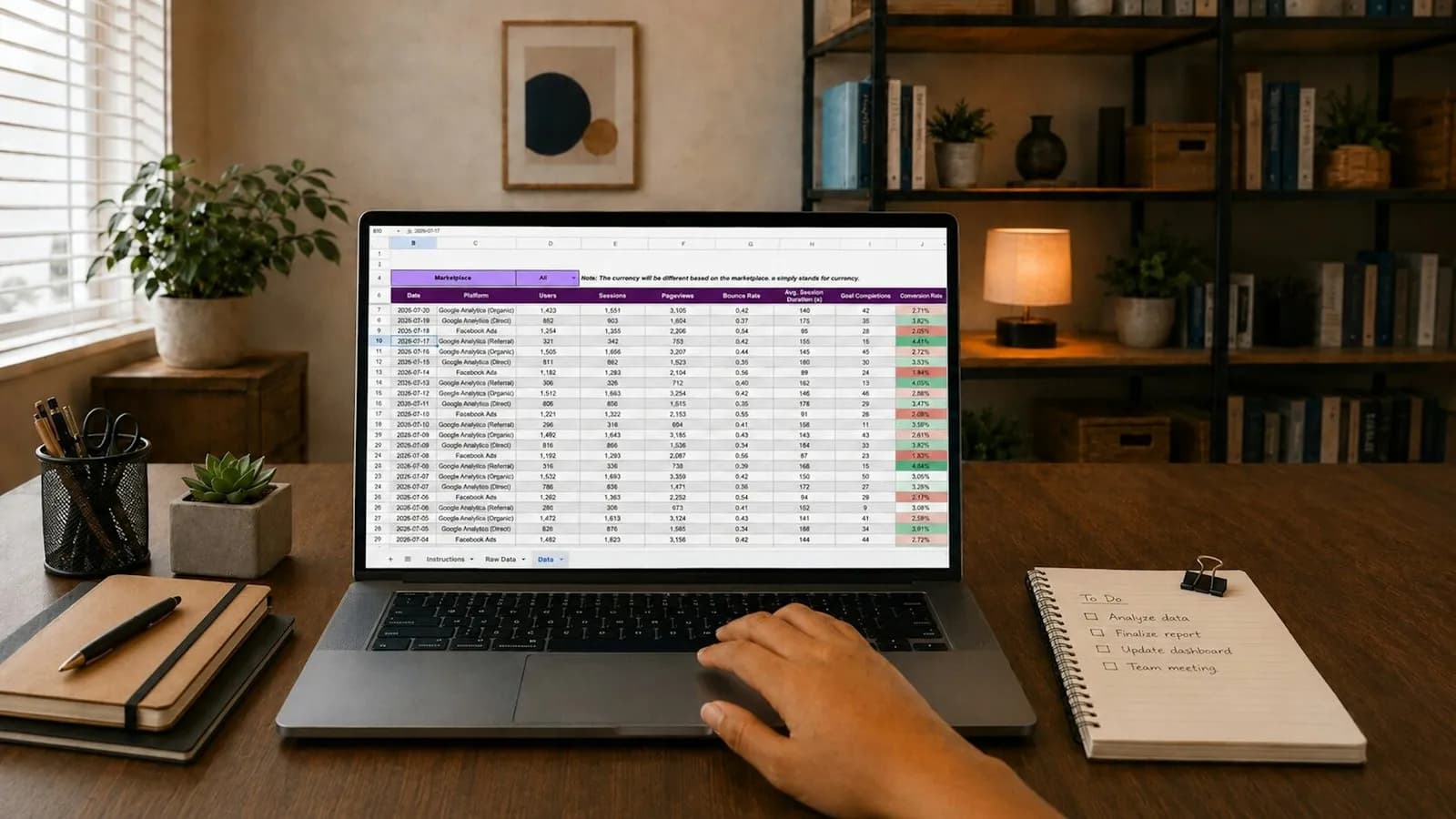
Almost every CRM project starts with the same thing: years of leads in Excel. One sheet per counsellor, one per season, a few downloaded from portals, and one called “FINAL new (2)”. The CRM is ready, and the temptation is to upload everything on day one and fix it later.
Later never comes. Dirty data inside a CRM is harder to fix than dirty data in a sheet, because it now has owners, automations and reports attached to it. This guide is a practical CRM data migration plan for Indian businesses and colleges moving from Excel to a CRM. The rule is simple: clean first, import once. (“crm data migration” gets about 50 searches a month in India, per OpenSEO, October 2026.)
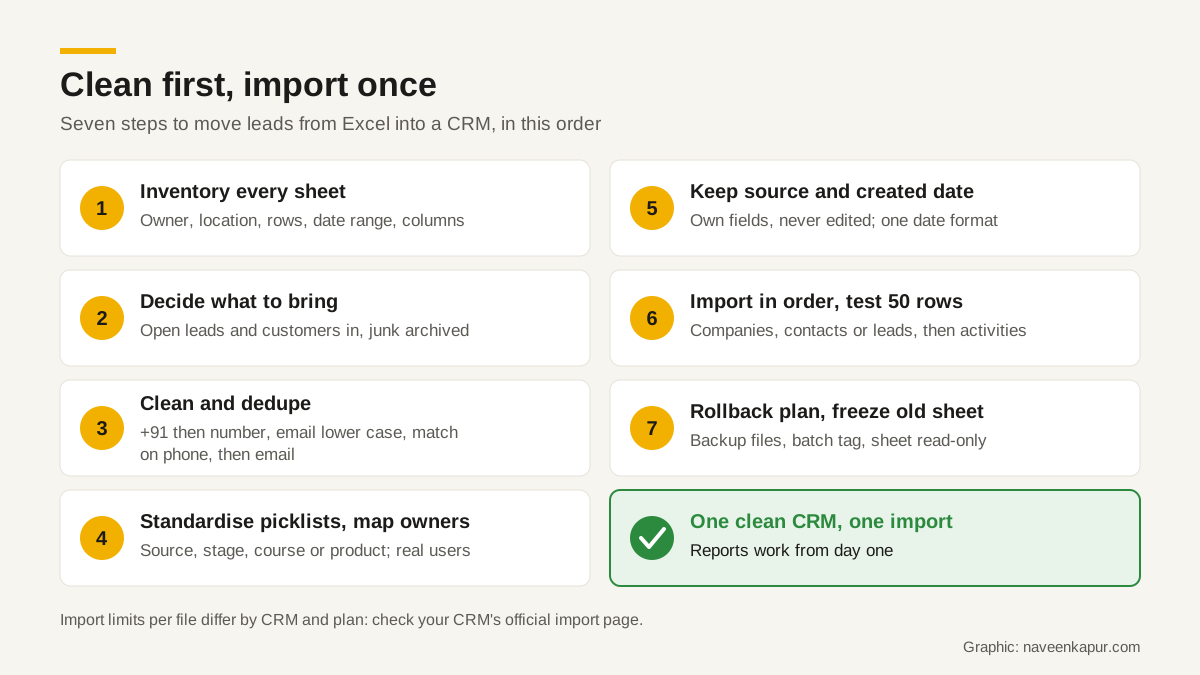
Step 1: Inventory every sheet
Before you clean anything, make a simple list of every source of data. For each sheet, write down:
- Who owns it and where it lives (a laptop, Google Drive, an email attachment).
- What it holds: enquiries, customers, companies, follow-up notes, payments.
- How many rows, and the date range it covers.
- Which columns it has, and what each column really means.
This takes a day and saves weeks. You will usually find the same lead in three sheets, columns with the same name and different meanings (“Status” in one sheet is the call result, in another it is the admission stage) and a few sheets nobody has opened in two years.
Step 2: Decide what to bring, and what to leave
You do not have to migrate everything. A CRM full of dead leads makes every list, report and automation slower to use. Agree on rules with the business owner or admissions head before cleaning starts. For example:
- Bring: open leads, customers or students, companies you still deal with, and leads from recent seasons that may still convert.
- Bring as history only: closed or lost leads from recent years, so a returning lead is recognised.
- Archive, do not import: very old enquiries with no phone or email, test rows and obvious junk.
Keep the archived sheets in a read-only folder. You are not deleting history, you are choosing not to clutter the new system with it. If you are still choosing a platform, see Zoho CRM vs Salesforce first, because the target fields shape this step.
Step 3: Clean the data (dedupe rules that hold)
CRM data cleaning is mostly about making the same thing look the same everywhere. Work on a copy, never on the original sheet, and fix these columns first.
Phone numbers
Store mobile numbers in one international format: plus sign, country code, then the number, with no spaces or dashes. For India that means +91 followed by the 10-digit mobile number. This follows the style of ITU-T E.164, the international numbering plan, and HubSpot’s import guide asks for the same +[country code][number] format. Remove leading zeros, spaces, brackets and “+91-” variations before you match duplicates.
Emails
Convert every email to lower case and trim spaces. Rahul.Sharma@Gmail.com and rahul.sharma@gmail.com should be one person. Flag obvious fakes such as test@test.com for review instead of importing them.
Duplicates
Write the rule down: match on cleaned mobile number first, then on lower-case email. When two rows match, keep one record, keep the earliest created date and its original source, and move the other rows’ notes into that record as history. Decide who wins the owner field (usually the person who last worked the lead) and write that rule down too.
Step 4: Standardise picklists and map owners
Free text is the enemy of reporting. In Excel, one lead source can appear as “FB”, “Facebook”, “facebook ads” and “Meta”. In the CRM, these must become one picklist value, or your source report splits one channel into four.
Make a mapping table for each picklist field before you import: old value in one column, new CRM value in the next. Do this for at least these fields:
| Field | Messy Excel values | Clean CRM value |
|---|---|---|
| Lead source | FB, facebook ads, Meta | Paid social |
| Lead source | shiksha, Shiksha.com | Education portal (sub-source: Shiksha) |
| Stage | int, Interested, hot | Interested |
| Course or product | MBA, M.B.A, mba 2 yr | MBA (2 years) |
| Owner | Priya, priya s, PS | Priya Sharma (CRM user) |
Owner mapping needs special care. Every owner name in the sheet must match a real, active user in the CRM. Staff who have left should be mapped to a current person or a team queue, decided in advance. Zoho CRM’s import, for example, lets you assign a default owner to all imported records or apply assignment rules during import, but a clean owner column is still the safer route. Check role and visibility rules too, so each counsellor sees the leads they should.
Step 5: Keep lead source, created date and one date format
When you import leads into a CRM, the system stamps each record with today’s date as its created time. If you do nothing, every old lead looks new, and your “leads by month” report shows one giant spike on import day.
Create two custom fields before you import: Original created date and Original lead source. Fill them from the sheet and never edit them afterwards. Reports on lead age, season and channel then use these fields for migrated records. The same idea keeps portal data honest; see portal leads in your CRM.
Pick one date format for the whole file. Indian sheets mix 05/10/2026 (5 October) and 10/05/2026 (written the US way), which an importer cannot tell apart. HubSpot’s import guide accepts day-month-year, month-day-year or year-month-day, and Zoho CRM’s import asks you to set the date format used in the file. Either way, the file must use one format consistently. A four-digit year and a written month (05-Oct-2026) remove the doubt.
Step 6: Import in the right order, and test with 50 rows
Records in a CRM link to each other, so the parent must exist before the child. Import in this order:
- 1Companies or accounts (for B2B; skip for most student enquiries).
- 2Contacts or leads, linked to their company where there is one.
- 3Deals or applications, linked to the contact.
- 4Activities and notes (calls, follow-ups), linked to the lead or contact.
Then run a test import of about 50 rows, picked to include hard cases: a duplicate, a Hindi name, a missing email, an old date, a staff member who has left. Salesforce’s own Trailhead guidance recommends importing a small test file first. Open each test record by hand and check phone, owner, source, dates and links. Delete the test batch, fix the mapping and only then run the full file.
Know your CRM’s import limits before you split files. These were the figures on each vendor’s official page when this article was written:
| CRM | What the official page says | Duplicate matching |
|---|---|---|
| Zoho CRM | CSV up to 10,000 rows (Standard) to 50,000 rows (Ultimate) per import; XLS, XLSX and VCF up to 5,000 records per batch. CSV file size 5 MB (Free) to 25 MB (Enterprise and Ultimate). | Match on Record ID, email or record name; add new, update existing, or both; option to skip empty values |
| Salesforce | Data Import Wizard: up to 50,000 records at a time. Data Loader: up to 150 million records, and objects the wizard does not support. | Set matching criteria in the wizard when adding or updating |
| HubSpot | Paid plans: 512 MB per file and 1,048,576 rows per file; free tools: 20 MB per file. Fewer than 1,000 columns, one sheet per file. | Record ID for all objects; email for contacts; company domain for companies |
Also check whether imports trigger workflows. Zoho CRM, for example, shows an option to trigger configured automations only for smaller files, and notes that date-based workflows can still run. You do not want 5,000 old leads to receive a welcome WhatsApp on import day. Switch off or test such automations first.

Step 7: Rollback plan and freezing the old sheet
Plan for the import going wrong before it happens:
- Keep the exact files you imported, plus the cleaned master copy, in a dated folder.
- Tag every record with an import batch value (for example “Import Oct 2026 Batch 1”). If a batch is wrong, you can find and remove exactly those records.
- Take a CRM export or backup before any update-type import that changes existing records.
- Write down who can approve a rollback and how long the team waits before deciding.
On the day the full import is checked, freeze the old sheet. Make it read-only, rename it with “ARCHIVED, do not use”, and tell the team that from now on every new lead goes into the CRM only. If the sheet stays open, someone will keep using it, and in a month you have two systems again.
When to get help
A small team with a few thousand rows can do this in-house with the steps above. Bring in help when you have many sheets with conflicting columns, linked data such as companies, deals and payments, or a live admission season you cannot pause. A CRM consultant can own the mapping and testing, and Naveen Kapur’s CRM development service can include migration as part of setting up a CRM. For colleges, the same plan fits the fields in CRM for colleges.