Ask a business owner which marketing source brings customers and you usually get three answers. The agency shows Google Ads conversions. GA4 shows sessions and form submissions. The sales or admissions team says most good leads come from referrals. All three can be partly right, because each is looking at a different part of the journey.
A lead-source dashboard puts those parts on one page. This guide explains how to plan a Looker Studio dashboard that joins GA4, Google Ads and your CRM, what each number means, and what to check before you trust it. It is written for owners and marketing heads who will use the dashboard, and for the person who will build it.
First, the name: Looker Studio is now Data Studio
Google's documentation says that in April 2026 the Looker Studio product name returned to its original name, Data Studio. The release notes date the rebrand entry 16 April 2026. The product is at datastudio.google.com, and Google says lookerstudio.google.com redirects to the new domain automatically, so existing reports keep working. Google describes it as a no-cost tool for dashboards and reports. Most people still search for "Looker Studio", so this article uses both names. Everything below applies to the same product.
One caution: Looker (without "Studio") is a separate paid business intelligence platform. The free dashboard tool discussed here is Data Studio.
What the dashboard must answer
Before anyone opens the tool, write down the five questions the dashboard must answer every week. For most businesses that sell through enquiries (colleges, clinics, B2B services, real estate, hotels with banquet sales), they are:
- 1How many enquiries did each source bring this week and this month?
- 2What did each paid source cost per enquiry?
- 3How many of those enquiries became admissions, bookings or sales?
- 4What did each source cost per admission or sale?
- 5How many leads arrived with no source at all?
The first two come from GA4 and Google Ads. Questions three and four need the CRM, because only the CRM knows what happened to a lead after the form. Question five is a health check on your tracking. Our guide to cost per admission explains why the later numbers matter more than cost per lead.
The three data sources
| Source | What it gives the dashboard | How to connect | Default refresh in Data Studio |
|---|---|---|---|
| GA4 | Sessions, enquiries (key events) and their source / medium and campaign | Google Analytics connector; you need at least Read & Analyze on the property | Every 12 hours |
| Google Ads | Cost, clicks, impressions and conversions by campaign | Google Ads connector | Every 12 hours |
| CRM | Leads, stage, admissions or sales, with the source saved on each lead | A scheduled export into Google Sheets, or a database or partner connector | Google Sheets: every 15 minutes by default |
GA4 itself also takes time. Google's Analytics help says daily data for standard properties typically takes about 12 hours to process, and that processing can take 24 to 48 hours, during which numbers may change. So treat yesterday's figures as provisional and review the dashboard on a fixed day each week.
Getting CRM data in
This is the step most dashboards skip, and it is the step that makes the dashboard worth having. The simplest method for a small or mid-sized business is a scheduled export from the CRM into a Google Sheet with one row per lead: lead ID, created date, source, medium, campaign, stage, and the date and value of the sale or admission. Most CRMs, including Zoho CRM and Salesforce, can export or sync data on a schedule; larger set-ups may use a database or a partner connector instead.
Do not include names, phone numbers or emails in the sheet. The dashboard needs counts, not people. Keeping personal data out also keeps the sheet safer to share.
The join key decides everything
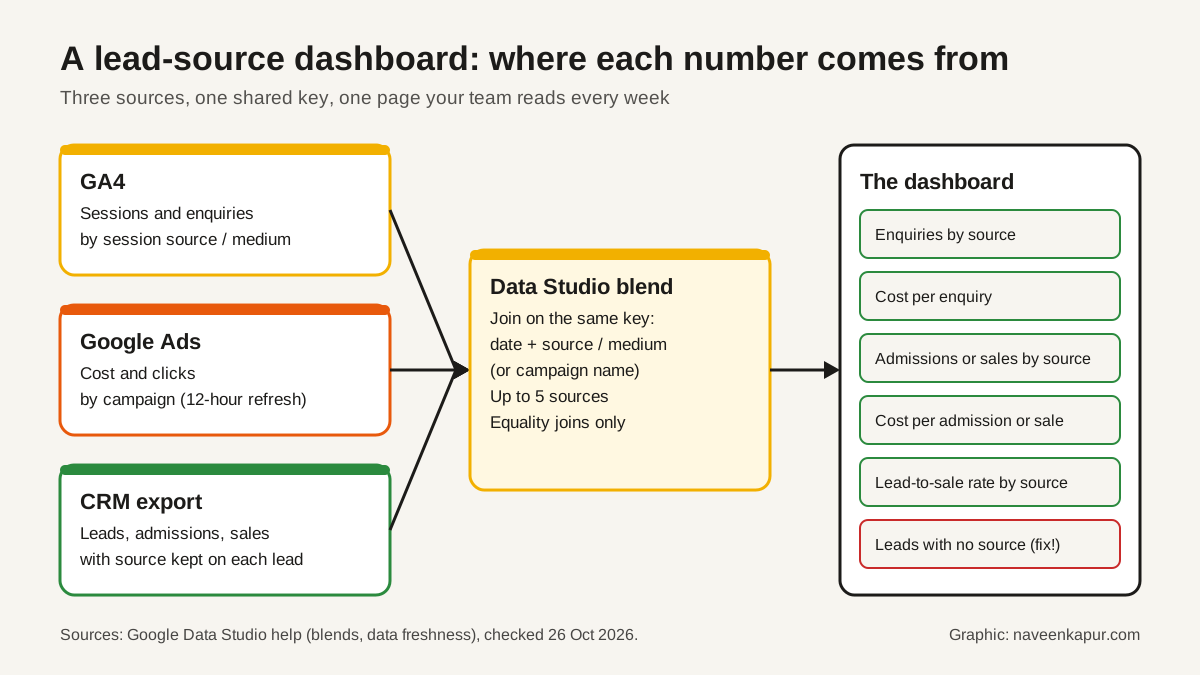
Data Studio combines sources with a blend. Google's help says a blend can combine up to five data sources, supports inner, left outer, right outer, full outer and cross joins, and only supports equality between the fields in the join condition. In plain words: the value in GA4 must be exactly the same text as the value in the CRM sheet, or the rows will not meet.
That is why the real work happens before the dashboard:
- One UTM naming rule. Decide once how sources and mediums are written (for example, lower case: google / cpc, facebook / paid_social, newsletter / email) and use it on every tagged link.
- Save the source on the lead. The website form should pass UTM values (and the Google Ads click ID) in hidden fields into the CRM. Our guide to offline conversion tracking shows how.
- Use the same field in the CRM. If the CRM has a picklist for lead source, its values must match the UTM names, or you need a mapping table in the sheet.
- Pick the grain. Join on date plus source / medium for an overview, or on date plus campaign name for a paid-media view. Joining on lead ID only works if the website also sends that ID to GA4.
Two more details from Google's help: a blend lives only inside the report where you made it and cannot be reused in other reports, and it takes its data freshness and credentials from the sources it uses.
Which GA4 source fields to use
GA4 has traffic-source fields at three scopes. User-scoped fields such as First user source describe how a person first arrived. Session-scoped fields such as Session source describe what brought each visit. For an enquiry dashboard, session source / medium and session campaign are usually the right choice, because they describe the visit in which the form was sent.
Google's help also explains how tags interact. When Google Ads auto-tagging and manual UTM tags are both present, GA4 uses the auto-tagged values for source and medium. If some UTM values are missing, the missing ones show as (not set), so set every relevant parameter on each link. Our GA4 setup checklist covers key events and tagging in detail.
The tiles to put on the page
| Tile | Calculation | Why it matters |
|---|---|---|
| Enquiries by source | GA4 key event count by session source / medium | Shows where demand comes from |
| Cost per enquiry | Google Ads cost / enquiries from that campaign | The first efficiency check for paid media |
| Admissions or sales by source | CRM count of won leads by saved source | The number the business is paid on |
| Cost per admission or sale | Cost / won leads from that source | Compares channels on outcome, not volume |
| Lead-to-sale rate | Won leads / all leads, by source | Shows lead quality per source |
| Leads with no source | CRM leads where source is empty | Shows broken tracking or manual entry gaps |
Two practical points. First, GA4 enquiries and CRM leads will not match one for one: people block cookies, phone in, walk in or enquire twice. Look at the gap each week rather than expecting zero. Second, sales lag enquiries, sometimes by weeks or months. Compare cost per sale over a period long enough for leads to close, such as the last full quarter.

Limits to know before you build
- GA4 API quotas. Data Studio reports on GA4 use the Google Analytics Data API, which has quotas. For a standard property the core limits include 200,000 tokens per property per day, 40,000 per hour, 14,000 per project per property per hour and 10 concurrent requests (checked 26 Oct 2026). A report with many charts and many viewers can hit them and show an error; fewer charts per page and an extract of the data help.
- No GA4 segments or comparisons through the connector, and its numbers match GA4 standard reports, not explorations.
- Data retention. GA4 standard properties keep event-level data for 2 or 14 months. Google says this setting does not affect standard aggregated reports but does affect explorations and funnel reports, so set it to 14 months anyway.
- Totals with calculated fields. Google notes that tables filtered by a calculated field do not show totals in the summary row, so check totals against the source once.
Sharing and the weekly email
Data Studio can email a report on a schedule as a PDF. Google's help says the free version allows one schedule per report, a fastest frequency of once a day and up to 50 recipient addresses, with email quotas of 200 a day and 800 a month for individual accounts (500 and 3,000 for Google Workspace accounts). The Pro version adds up to 200 schedules per report, hourly delivery and delivery to Google Chat and Slack (checked 26 Oct 2026).
A weekly email at a fixed time, sent to the owner, the marketing head and the sales or admissions head, does more than any dashboard nobody opens. Discuss the same six tiles in the same weekly meeting.
Questions to ask whoever builds it
- 1Which five questions will the first page answer, and for whom?
- 2What is the join key, and how will source names in GA4, Google Ads and the CRM be kept identical?
- 3How does CRM data reach the dashboard, and does it contain any personal data?
- 4How often does each source refresh, and when should we read the numbers?
- 5Who owns the report and the data sources, and are they in our Google account, not the builder's?
- 6How will we know when tracking breaks?
Red flags
- A dashboard with only GA4 and Google Ads data, so it cannot show sales or admissions.
- Twenty charts on the first page and no clear question behind them.
- Google Ads conversions shown as sales without checking them against the CRM.
- Reports and data sources owned by an agency account you cannot access.
- Phone numbers or emails copied into a shared Google Sheet.
If you want help planning a dashboard that ties marketing spend to real enquiries and sales, see our analytics and tracking service. The service box below explains how we work.