A common complaint soon after a CRM goes live at an institute or sales team goes like this: “We gave our admissions head full access, but her leads report shows only a few records.” Nobody deleted anything. The CRM is doing exactly what it was told. The problem is that CRM user roles and permissions answer two different questions, and only one of them was set.
This guide explains those two questions in plain terms, shows where each is set in Salesforce, Zoho CRM and HubSpot, gives you a checklist for the “I have full access but cannot see leads” problem, and ends with a role design you can copy for an institute or sales team.
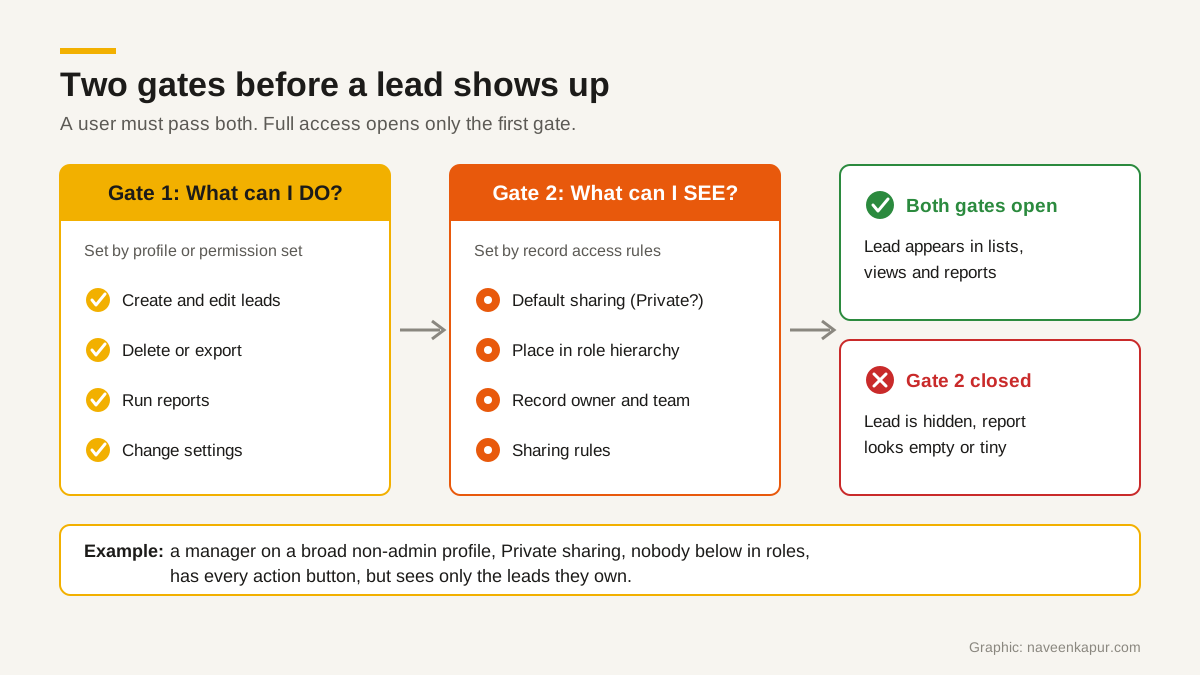
Two questions: what can I do, and what can I see?
Every CRM has to decide two things for each user.
- 1What can this user do? Create a lead, edit it, delete it, export a list, build a report, change settings. This is usually set by a profile or a permission set.
- 2Which records can this user see? All leads, only their team’s leads, or only the leads they own. This is set by record access tools: the default sharing setting, the role hierarchy, ownership, teams and sharing rules.
The trap is the word “full”. When people say a user has full access, they almost always mean the first question: every action button is switched on. But a user can have every button and still see only a small slice of the records. The buttons only work on records the user is allowed to see.
How Salesforce separates the two
Salesforce says it plainly: user security is “an intersection of sharing, and user and object permissions”. A user’s baseline rights on an object such as Leads come from their profile plus any permission sets and permission set groups. But Salesforce’s own help adds that the Read, Create, Edit and Delete permissions respect sharing settings. So a user with Read and Edit on Leads can still read and edit only the leads that sharing lets them reach.
Record access in Salesforce is built in layers:
- Organization-wide defaults set the baseline. Salesforce’s Trailhead describes using them “to lock down your data to the most restrictive level”, for example Private.
- The role hierarchy opens records upwards: managers get access to the same records as their subordinates. Salesforce also notes that role hierarchies do not have to match your org chart. Each role is a level of data access.
- Sharing rules are automatic exceptions for particular groups, such as letting one branch see another branch’s leads.
- Manual sharing lets an owner share a single record.
The permissions that do cut across sharing are View All Records and Modify All Records on a single object, and View All Data and Modify All Data across the whole org. Salesforce describes the object-level pair as meant for delegated data administrators. These are powerful. Do not hand them out just to make a report look full.
How Zoho CRM separates the two
Zoho CRM uses two clear words. Its help says: “A profile is a collection of permissions for actions that a user will require to perform their job.” And: “Roles in CRM represent your organization’s hierarchy.” The profile is Gate 1; the role is a big part of Gate 2.
Zoho’s rules on visibility are worth knowing by heart:
- Users in a higher role can access their subordinates’ data by default.
- Users with the same role cannot see each other’s data, unless Share Data with Peers is turned on for that role.
- A user with the Administrator profile can access all data, whatever role they hold.
- Data sharing settings set the default per module: Private (only the owner and their superior can view a record), Public Read Only, or Public Read/Write/Delete.
- Data sharing rules can extend access to other roles and groups, but Zoho says you cannot use them to restrict the access set in the organization’s default permissions.
This is why, in Zoho, two counsellors on the same role often cannot see each other’s leads, and a newly hired head placed on a side branch of the hierarchy sees nothing from the team she is meant to manage.
How HubSpot separates the two
HubSpot puts both questions on one screen, which makes it easier to read but just as easy to miss. For each CRM object, such as contacts or deals, a user’s View and Edit permissions each carry a scope: all records, their team’s records, or only their own. Edit can also be set to none. Team and personal scopes have an option to include unassigned records.
Access is based on the owner property. A user with team scope can access records owned by any member of their assigned teams. So if a team lead is not added to the right team in HubSpot, a team scope gives her almost nothing. Super Admins get access to all account tools and settings. To check a single record, HubSpot has a View record access panel that lists which users can see the record and at what level.
CRM roles and permissions: can do vs can see
| CRM | What a user can DO is set by | Which records they can SEE is set by | What overrides record limits |
|---|---|---|---|
| Salesforce | Profile, permission sets and permission set groups (object Read, Create, Edit, Delete) | Organization-wide defaults, role hierarchy, sharing rules, manual sharing | View All Records or Modify All Records on an object; View All Data or Modify All Data |
| Zoho CRM | Profile | Role in the hierarchy, data sharing settings (Private, Public Read Only, Public Read/Write/Delete), data sharing rules, Share Data with Peers | Administrator profile |
| HubSpot | Permission set: which tools and actions (View, Edit and more) | Scope on each object permission: all, their team’s, or their own records; team membership; record owner | Super Admin, or a permission scope of all records |
If you are still choosing between the first two, the Zoho CRM vs Salesforce comparison covers cost and fit. The access model is one more thing to test in the demo.
“I have full access but cannot see leads”: a checklist
Work through this list in order. Most cases are solved in the first four steps, and none of them needs an admin login for the user.
- 1Confirm the question. Can the user open a lead you send them a direct link to? If the record says no access, it is a visibility problem (Gate 2), not a profile problem.
- 2Check the default sharing setting for the Leads module or object. If it is Private, the user sees only what they own plus what the hierarchy and rules add.
- 3Check the user’s role. Is it above the counsellors whose leads they need? A head placed beside the team, not above it, sees none of the team’s records.
- 4Check the record owners. Leads assigned to a generic “admin” or integration user, or to a person who has left, sit outside everyone’s branch. Reassign them or add a sharing rule.
- 5Check teams (HubSpot) or peer sharing (Zoho). Is the user in the right team? Is Share Data with Peers on where it should be?
- 6Check the view and report filters. “My leads”, a date filter or a stage filter can make a report look empty even when access is fine.
- 7Log in as the user (or use the vendor’s login-as or record access tool, if your edition has one) and repeat the test. Fix the cause, then remove any temporary access you added.

A role hierarchy CRM template for an institute or sales team
Start from the records each job needs, not from job titles. Here is a starting design for a training institute or college admissions team. The same pattern fits a sales team: replace counsellor with sales executive and admissions head with sales head.
| Role | Can see | Can do | Should not do |
|---|---|---|---|
| Counsellor | Own leads and students | Create and edit leads, log calls, book visits, send approved templates | Export lists, delete records, change fees |
| Team lead | Own team’s leads (role above counsellors) | Everything a counsellor can, plus reassign within the team | Change settings, delete records |
| Admissions head | All leads and applications | Reports, reassign across teams, approve status changes | Edit fee structures or payments |
| Accounts | Students with fee records; leads only if needed | Record payments, issue receipts, apply approved late fees | Edit lead source or owner |
| Marketing | Lead source and campaign fields, mostly in reports | Build reports and lists, manage forms | Edit individual student records or fees |
| AI agent or integration | Only the records and fields its job needs | The specific actions it was built for, logged | Admin rights, deletes, money, status or owner changes |
The last row matters more every month. An AI agent or an integration should never run as an admin user. Give it its own user with the least privilege it needs, so its actions are logged under its name and can be limited. Our guide to AI CRM covers what agents should and should not change.
This is also how CampusFlow CRM, the education CRM I designed for a training institute, is set up: role-based access decides what each counsellor, accounts user and head can see and do, and its optional WhatsApp agents work inside the same limits.
Before you go live
- Write the role table on one page and get the heads of admissions, accounts and marketing to agree to it.
- Set the default sharing setting first, then the role hierarchy, then sharing rules. Add exceptions last.
- Create one test user per role and log in as each. Check one lead list and one report.
- Review users and roles every quarter, and on the day anyone leaves.
If your CRM already has a messy mix of profiles and roles, an outside review often pays for itself. Read when a business needs a CRM consultant, or see how I approach CRM development when roles and access are designed in from day one.